> For the complete documentation index, see [llms.txt](https://final-autoclaim.gitbook.io/docs/llms.txt). Markdown versions of documentation pages are available by appending `.md` to page URLs; this page is available as [Markdown](https://final-autoclaim.gitbook.io/docs/academy/how-to-use-expert-mode.md).

# How to use Expert Mode?

Expert Mode lets you decide how your Autoclaim reward is distributed. You assign 100% of your Pool Weight across one or more coins.

If you put 100% on one coin, the whole Pool Weight is concentrated on that coin instead of being split across several coins.

{% hint style="warning" %}
Expert Mode uses DUTCHY every 5 minutes. The cost is: **Pool Weight × 5 DUTCHY × reward multiplier**. A higher Pool Weight increases both the cost and the rewards.
{% endhint %}

### Open the Autoclaim setup

Go to the [dashboard](https://autofaucet.dutchycorp.space/dashboard.php), then click **Start Autoclaim**.

### Select Expert Mode

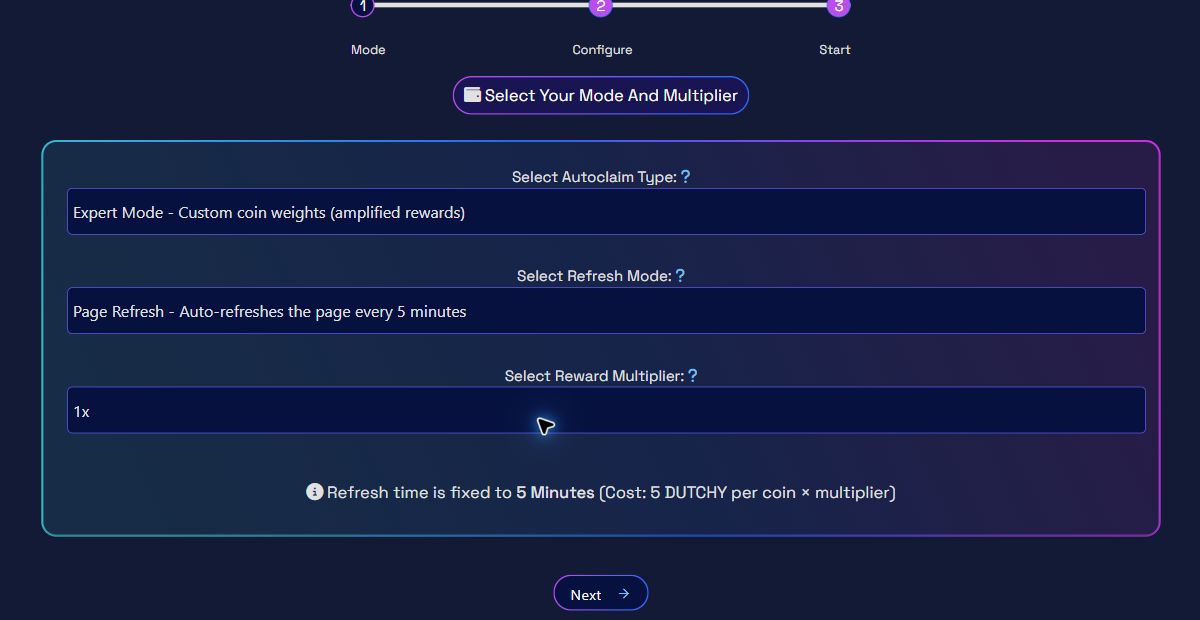
Under **Autoclaim Type**, select **Expert Mode**.

Choose how the Autoclaim should run:

* **Page Refresh** refreshes the page every 5 minutes.
* **In-Page** claims without reloading, but the tab must stay open and focused.

Then choose your reward multiplier and click **Next**.

<figure><img src="https://files.gitbook.com/v0/b/gitbook-x-prod.appspot.com/o/spaces%2FBybwDAlAELVZdlgtdcIp%2Fuploads%2F8kiYM7gtHGzTj6kEJRmo%2Fexpert-mode-step-1-clean.png?alt=media&#x26;token=9921b20e-a453-4299-8264-1124fc3a2362" alt="Expert Mode selection, refresh type and reward multiplier"><figcaption><p>Select Expert Mode, the refresh type and a reward multiplier.</p></figcaption></figure>

{% hint style="info" %}
Multipliers from 1x to 5x are available to everyone. 6x requires level 300 or Platinum, and 7x requires level 400 or Platinum.
{% endhint %}

### Choose a preset

The easiest way to start is to use a default preset.

Select a preset from the list, then click **Load**. The **Allocated** value must show **100%** before you can continue.

<figure><img src="https://1705162524-files.gitbook.io/~/files/v0/b/gitbook-x-prod.appspot.com/o/spaces%2FBybwDAlAELVZdlgtdcIp%2Fuploads%2Fzk6RuVJSUiH1D6g7ZBYz%2Fimage.png?alt=media&amp;token=fa1aa238-5fc9-4470-83c7-6b8b5393cfe1" alt=""><figcaption><p>Choose a preset, load it, and check the summary.</p></figcaption></figure>

{% hint style="info" %}
A preset decides which coins receive the Pool Weight and how the 100% is divided between them.
{% endhint %}

Here is a quick overview of the default presets:

* **EVM Coins** — coins that use an EVM-compatible network.
* **Layer 1 / Layer 2** — coins grouped by blockchain layer.
* **Memecoins** — meme-focused coins.
* **Space Token Ecosystem / SpaceStake Ecosystem** — coins from these ecosystems.
* **Top 100 / Top 100 by Market Cap** — supported top-ranked coins, with equal or market-cap-based weights.
* **Top Gainers / Top Losers** — supported coins based on market performance over 24 hours or 7 days.

{% hint style="info" %}
Preset availability can change as supported coins evolve. Dynamic and Market Cap presets are refreshed every two hours.
{% endhint %}

### Adjust the Pool Weight

Use the **Pool Weight** slider to choose the total reward strength.

* A lower Pool Weight costs less DUTCHY and gives lower rewards.
* A higher Pool Weight costs more DUTCHY and gives higher rewards.
* Changing Pool Weight does not change the percentages inside your preset.

<figure><img src="https://1705162524-files.gitbook.io/~/files/v0/b/gitbook-x-prod.appspot.com/o/spaces%2FBybwDAlAELVZdlgtdcIp%2Fuploads%2FCkAzuFujMxn9bxqUQ9r7%2Fimage.png?alt=media&amp;token=a379a424-b9a5-46c1-a13e-55034df20787" alt=""><figcaption><p>Move the slider to adjust the total Pool Weight.</p></figcaption></figure>

For example, with Pool Weight 10, a coin with 100% weight gets the full 10x effective coin multiplier before your selected reward multiplier and bonuses are applied.

### Optional: create your own preset

Create a custom preset when you want to choose the coins and percentages yourself.

1. Use the **slider**, **−**, or **+** on each coin row to set its weight.
2. Watch the colored allocation bar while you edit. Each color represents one weighted coin.
3. Keep adjusting the weights until **Allocated** reaches **100%** and turns green.
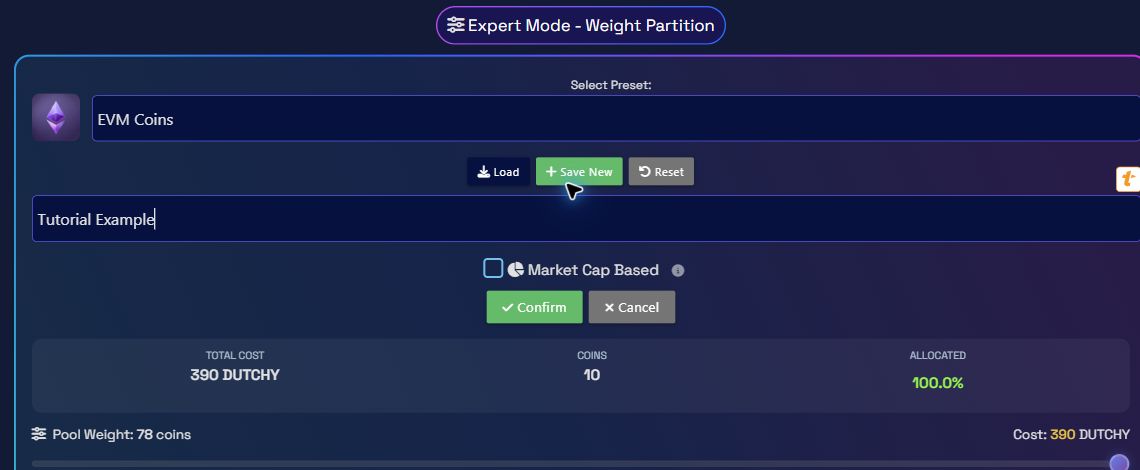
4. Click **Save New**.
5. Enter a preset name.
6. Optionally enable **Market Cap Based**.
7. Click **Confirm**.

<figure><img src="https://1705162524-files.gitbook.io/~/files/v0/b/gitbook-x-prod.appspot.com/o/spaces%2FBybwDAlAELVZdlgtdcIp%2Fuploads%2FJPTdt6uKDp374of10rBl%2Fexpert-mode-create-preset-allocation.png?alt=media&amp;token=11d030de-e3d4-4e85-af15-3631ee3735f6" alt="Save New button and Allocated value at 95 percent in Expert Mode"><figcaption><p>Allocated stays red while the total is below 100%. Reach 100% before saving the preset.</p></figcaption></figure>

<figure><img src="https://1705162524-files.gitbook.io/~/files/v0/b/gitbook-x-prod.appspot.com/o/spaces%2FBybwDAlAELVZdlgtdcIp%2Fuploads%2F5sLtumzHNAksEoEvHXqe%2Fexpert-mode-coin-sliders.png?alt=media&amp;token=7d8decba-f92f-4876-a8fc-c8cc4ea01784" alt="Expert Mode coin sliders and colored allocation bar"><figcaption><p>Use the controls on each coin row and watch the colored bar change with your distribution.</p></figcaption></figure>

<figure><img src="https://files.gitbook.com/v0/b/gitbook-x-prod.appspot.com/o/spaces%2FBybwDAlAELVZdlgtdcIp%2Fuploads%2F1XWLwTmWgtE5tT4h5j0C%2Fexpert-mode-custom-preset.png?alt=media&#x26;token=c5265788-f1e8-41d9-b667-cdea33f1f840" alt="Expert Mode custom preset name and Market Cap option"><figcaption><p>Name the preset, optionally enable Market Cap Based, then confirm.</p></figcaption></figure>

{% hint style="info" %}
Default presets cannot be edited directly. Load one, change the weights, then use **Save New** to create your own version. You can update or delete presets that you created.
{% endhint %}

Market Cap Based presets keep the coins you selected and automatically recalculate their weights every two hours.

### Review and start

Click **Next** and check the refresh type, multiplier, preset, number of weighted coins, cost, and estimated duration.

<figure><img src="https://1705162524-files.gitbook.io/~/files/v0/b/gitbook-x-prod.appspot.com/o/spaces%2FBybwDAlAELVZdlgtdcIp%2Fuploads%2FgnoI8o16GtPLL3NeBe40%2Fimage.png?alt=media&amp;token=52b2eaa7-8489-4259-adad-5e61e605411b" alt=""><figcaption></figcaption></figure>

Complete the captcha, then click **Start Autoclaim**.

{% hint style="success" %}
Expert Mode keeps using your saved preset until you return to the Autoclaim settings and choose another configuration.
{% endhint %}

You can preview the reward distribution at any time on the [Claims Rates page](https://autofaucet.dutchycorp.space/rates.php).